Configuring an outlook 2003 E-mailaccount
In case you start outlook for the very first time the setup will start automatically. When this does not happen, click "Tools" in the outlook menu and select "E-mail accounts".
If you are using outlook 2007 instead of 2003, please scroll down for a step-by-step tutorial for outlook 2007 users.
- Select ‘add new e-mail account’ and click ‘next’
- Choose for POP3 and click ‘next’
- On the next screen fill in the correct information as explained below:
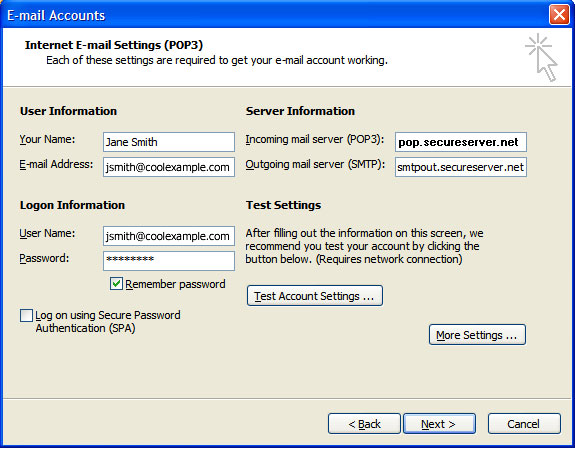
- Enter your e-mailadress and name. This information will be displayed as your contactinformation for the receivers of your emails.
- "incoming mail server": mail.ipower.be.
- "outgoiing mail server": this is the server use for sending out emails and depends on your ISP. Please contact your ISP if you're unsure about this.
- “Username”: this is the email adress you want to collect your emails from.
- “Password”: Enter the password corresponding with your username.
- To verify your settings, click "Test account settings".
click "next" if you didn't receive any errors (check/re-enter your information if you did). Click finish to start using your new emailaccount in with outlook 2003.
Configuring an outlook 2007 E-mailaccount
Follow this procedure to configure an emailaccount using outlook 2007.
- Click on "Tools" > "Accounts settings
- Click the E-mail tab
- Click "New"
- Select Microsoft Exchange, POP3, IMAP of HTTP and click ‘Next’
- Click the check box labeled "Manually Configure Server Settings". Click ‘Next’
- Select internet E-Mail and click "Next"
- On the next screen fill in the correct information as explained below:
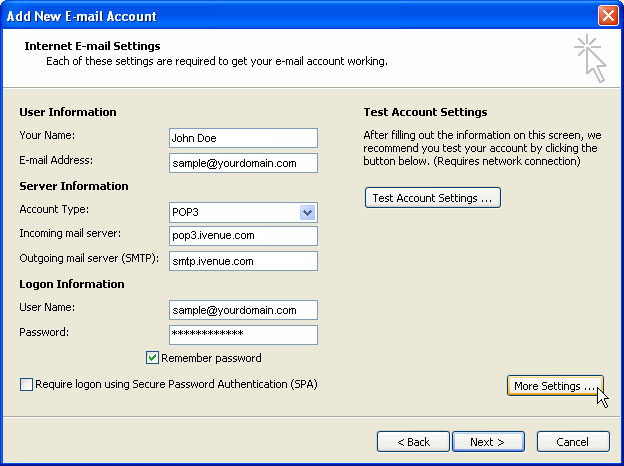
- "Name": Enter your name.
- "E-mail adress": Enter your e-amil adress
- “Account type”: POP3
- "Incomiong mailserver": mail.ipower.be
- "Outgoiing mailserver": this depends on your ISP. Please contact them if you are unsure about your ISP's mailserver
- "User Name": Enter the username corresponding with the emailadress
- “Password”: Enter the corresponding password.
- Check the option "remember password".
- Make sure you UNCHECK "Require logon using Secure Password Aurthentication (SPA)".
- Click "Test account settings". and click "next" and "finish" to start using your outlook 2007 account
|